
Fewer tokens without breaking the prompt cache: trying Token Saver
Try SpanDock's Token Saver safely: a dry run, then Passthrough, then Safe mode for part of the fleet, with the kill switch in reach.
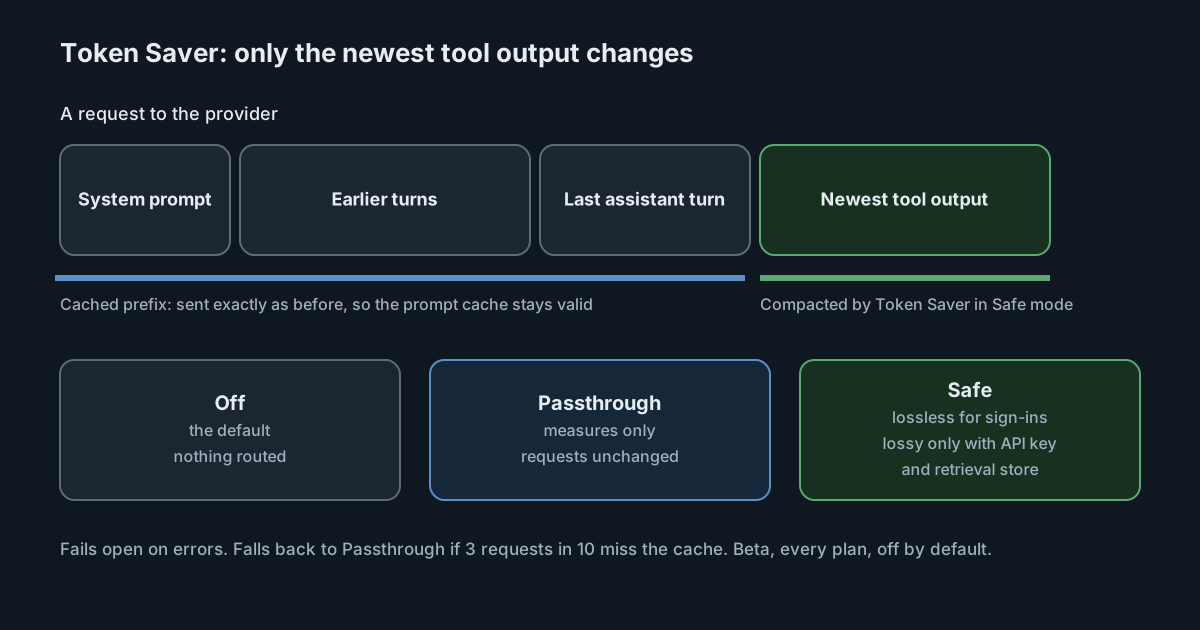
Coding agents send a lot of tool output back to the model: JSON, logs, test runs, search results and diffs. Token Saver, in beta, makes those requests smaller on each computer before they reach the provider. This guide tries it in the order that carries the least risk: a dry run, then measuring only, then compacting for part of the fleet, with a way to turn it all off at once. It follows Token Saver.
Prerequisites
- A SpanDock server on any plan. Token Saver is in every plan, in beta, and off by default.
- Paired computers where people use Claude Code or Codex. Both are routed automatically. See Pairing clients.
- Access to the server's dashboard, where the Token Saver policy is set.
How it works, briefly
Token Saver is a local proxy on each computer, listening on 127.0.0.1:8786 (or the next free port). Requests go from the AI tool to Token Saver, then straight to the provider, with the tool's own sign-in or key. It never replaces your provider credentials. Server keys are never involved, and nothing goes through the tunnel to your server.
Why it only touches the newest content. Providers cache the start of a conversation, so a request whose beginning matches an earlier one costs less. Rewriting anything already sent would change that beginning and lose the cache. Token Saver compacts only tool output after the last assistant turn, and sends earlier content exactly as before, so the cached prefix stays the same.
It fails open. Anything unexpected, such as a parse or transform error, sends the original request unchanged. And if three requests in ten miss the prompt cache, the computer falls back to Passthrough by itself.
When it routes Claude Code and Codex, it backs up their settings and can undo the change exactly. A tool already pointed at the model proxy or another address is reported as a conflict and left alone. Quitting SpanDock puts the tools' settings back, and starting it routes them again.
The three modes
| Mode | What it does |
|---|---|
| Off | The default. Nothing is routed. |
| Passthrough | Measures only. Requests are forwarded unchanged. |
| Safe | Compacts the newest tool output. |
In Safe mode, the changes depend on the credential:
- Subscription sign-ins, and credentials Token Saver doesn't recognise, get lossless changes only: minifying JSON, stripping terminal colour codes, folding repeated lines and grouping search results. No header is ever added.
- An API key with the local retrieval store on also allows lossy trimming of long arrays, logs and diffs. Each trim leaves a marker that names the original, which is kept on the computer for 30 minutes and never synced to the server.
Steps
1. Start with a dry run
The docs suggest trying a dry run first. A dry run applies Safe mode's changes to a copy of each request for 1 to 72 hours, while the original request goes to the provider unchanged. Afterwards, a side-by-side report shows what Token Saver would have saved. The contents stay on the computer. If the server may view the dry run's report, the computer shows a notice saying so, and the person can delete their own dry-run report. A period that covers ordinary work gives the most useful report.
2. Start with Passthrough
- On the server's dashboard, open AI tools → Token Saver → Policy.
- Under the defaults for every client, choose Managed and the mode Passthrough.
Passthrough changes nothing in the requests. It routes the tools through Token Saver and measures, so you see conflicts, latency and the request log before any content is compacted. A week of Passthrough is a good start.
3. Turn on Safe mode for part of the fleet
On the same Policy tab, switch the mode to Safe, and roll it out to a percentage of computers, or to computers with chosen tags, such as one team. Lock the mode if you don't want people to change it on their computers.
4. Keep the kill switch in reach
The kill switch on the Policy tab turns Token Saver off on every computer at once. Make sure whoever watches the rollout knows where it is.
Verify
Look at the fleet and the request log on the Policy page. Token Saver records one entry per request, with counts and names only: the tool, provider, model, mode, the changes applied, tokens before and after, the cost saved and how it was worked out, the latency added, and the reason for any fallback. Prompt and tool content are never recorded.
- Savings are priced with the price catalogue. The prompt cache's own saving is shown on a separate line, so you can see the two apart.
- Spend isn't counted twice. Token Saver's entries carry no model spend, so dashboards, budgets and the leaderboard count only the tool's own telemetry.
- On a computer, the Token Saver page shows that computer's own totals and log. On the server it shows the whole fleet's.
Judge the result by your own numbers from the dry run and the log rather than by any expected percentage. Savings depend on how much tool output your team's work produces.
Troubleshooting
- A tool isn't routed. It was already pointed at the model proxy or another address, so it was reported as a conflict and left alone. A tool routed through the model proxy isn't routed through Token Saver as well.
- A computer went back to Passthrough. Three requests in ten missed the prompt cache, so it fell back by itself. Check the fallback reason in the request log.
- Few changes for some people. Subscription sign-ins get lossless changes only. Lossy trimming needs an API key and the local retrieval store.
- A tool's requests look untouched. Token Saver covers the Anthropic Messages, OpenAI Chat Completions and OpenAI Responses formats only.
Next steps
- Token Saver for the full list of modes and limits.
- Model proxy and budgets if you also want routing rules and per-person budgets.