
Copilot's assisted permissions: what a model-judged approval does and doesn't do
GitHub made assisted permissions generally available on 26 October. A model now decides which agent actions need your approval. Here is how to roll it out.
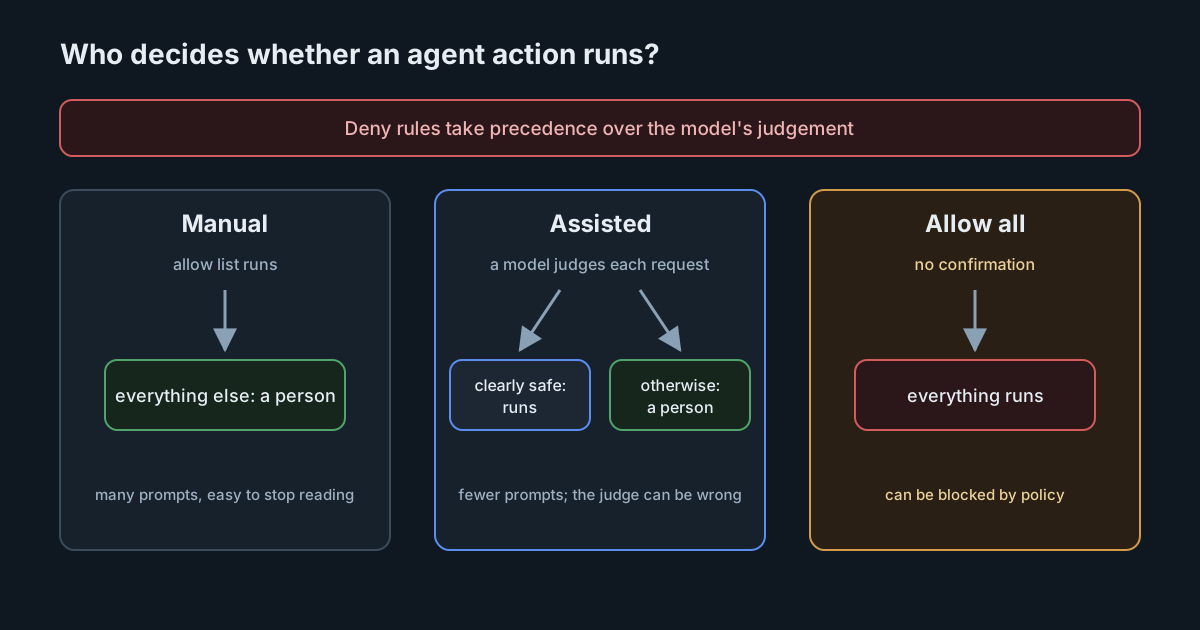
Every team that runs coding agents knows the trade-off. Ask for approval on every command and people stop reading the prompts; turn approvals off and the agent can do anything the developer can. On 26 October 2026 GitHub made a middle option generally available: assisted permissions, where a model looks at each request and decides whether it needs a person at all. This article explains what the mode does, where the documentation still disagrees about its status, and how to roll it out without treating it as a control it isn't.
What assisted permissions are
When Copilot wants to run a command, touch a file system path or open a URL, it normally checks your allow and deny lists and asks you about anything not covered. In assisted mode, a large language model evaluates the request first. In GitHub's words, "requests classified as clearly safe automatically proceed. Other requests require your approval."
The changelog lists three places to turn it on:
- Copilot CLI: run
/permissionsand choose assisted. - The Copilot app: open the mode picker, then Tool permissions, then Assisted.
- Visual Studio Code: open the permissions picker and choose Assisted permissions.
The Copilot CLI documentation adds the details that matter for operations. The mode can be set with /permissions assisted and checked with /permissions show; it can be made the default in configuration with defaultPermissionMode set to "assisted"; and non-interactive runs, such as a CI job, use the --assisted-approval flag. Your existing allow rules and your enterprise's rules still apply, and deny rules always take precedence over the model's judgement. /reset-allowed-tools returns a session to manual approval.
The status depends on which page you read
The changelog says assisted permissions are generally available in Visual Studio Code. The VS Code documentation, as we read it on 27 October, still labels the option experimental and says it "might change or be removed". It also says the option has to be switched on with the chat.assistedPermissions.enabled setting, needs a session that uses folder isolation, and isn't available for Local harness sessions.
The two may simply be out of step for a few days. Until they agree, treat the VS Code side as experimental for planning purposes, and check the setting and session type before telling developers the option is there for them.
What the model is and isn't
The VS Code page describes the mode as using "an LLM judge to assess each tool call", and is direct about its limits: "The model-based risk assessment can make mistakes." The first time a developer selects it, a warning dialog asks them to confirm.
That framing is the right one. A model judge is a way to spend fewer approvals on routine work. It is not a sandbox and not a policy engine:
- It classifies, it does not contain. A command judged safe runs with the same access as any other command. The VS Code page separately notes that sandboxing is independent of the permission level, and that terminal auto-approval is "a best-effort convenience, not a security boundary."
- It reads what it is shown. The judgement is made on the request as the agent phrases it. A command assembled from content in the repository, an issue or a web page can be written to look routine. Prompt injection does not need to defeat the judge; it only needs to produce something that looks clearly safe.
- It can be wrong in both directions. Over-cautious judgements bring back approval fatigue. Over-generous ones are the costly kind, and you will only find them by reviewing what ran.
We covered a related gap in binding approvals to the effect that actually runs: a person, or a model, approving one thing while another executes. Assisted permissions do not change that problem. They move the first decision from the developer to a model.
The enterprise controls
GitHub's announcement gives administrators two levers through enterprise-managed settings. They can block Allow All while keeping Assisted available, or disable Assisted on its own. They can also choose the default permission mode for new sessions. Developers can still pick any other mode that policy permits, and if the default is unavailable or prohibited, the session starts with manual approval.
The first lever is probably the most useful thing in the release. Many organisations already know developers switch on "allow all" to get work done. Offering a model-judged middle option while removing the unconditional one is a better trade than either extreme, provided deny rules stay in place for the commands you never want run.
How to roll it out
- Write the deny list first. Deny rules take precedence over the model in the CLI. Put destructive and exfiltration-shaped commands there: force pushes, deletes outside the workspace, credential reads, uploads to arbitrary hosts. The model then decides only within what you have already allowed to be decided.
- Decide on Allow All separately. If assisted mode is acceptable to you, blocking Allow All is a reasonable companion setting. If it isn't, disable Assisted and say why.
- Keep sandboxing on. Whatever the permission level, run agents in an isolated workspace or container where you can. A misjudged command in a sandbox is an incident report; on a laptop with production credentials it is an incident.
- Be careful in CI.
--assisted-approvallets non-interactive runs proceed without a person. A CI runner often holds tokens a laptop doesn't. Pair it with narrow tokens, a tight deny list and no network access you don't need. - Review what was auto-approved. Sample sessions weekly for the first month and look at what the model let through. That is the only way to learn whether its idea of "clearly safe" matches yours.
- Tell developers what the mode is. The warning dialog says the model can make mistakes. Repeat it in your own guidance, so nobody treats an auto-approved command as a reviewed one.
What it means for engineering and security leaders
Assisted permissions will reduce interruptions, and that matters: approval prompts that nobody reads protect nobody. But the security properties of your setup are still set by what the agent can reach, what is denied outright and what is recorded, not by the judge. Treat the new mode as a usability improvement layered on top of controls you already trust, and check the VS Code documentation again before announcing it there as generally available.
If your agents call MCP tools through the SpanDock MCP gateway, on the Premium and Enterprise plans, the gateway applies its own permissions on the server whatever mode the tool is in: connectors start read-only, and destructive tools still need approval when write access is granted.