
The new home page: install in one command, and watch a call go through
The home page now has a one-command install for each platform, a simulation of a call passing through SpanDock, and the facts behind air-gapped use.
The SpanDock home page has three new parts: an install block with one command per platform, a live simulation of calls passing through a SpanDock deployment, and a section called "Secure by default. Air-gapped when you need it." Each is meant to answer a question that people evaluating SpanDock ask early: how do I install it, what does it actually do to a call, and what does it need from my network?
Install in one command
The install block has a tab for each place you might start:
- Linux server: one command,
curl -fsSL https://spandock.com/deploy/install-server.sh | sudo bash. It prints an activation link when it finishes, and you can run it again at any time to repair or upgrade the install without losing data or settings. - macOS:
brew install --cask spandock/spandock/spandock, thenopen -a SpanDock. - Linux desktop: download the tarball, unpack it and run
./spandock. - Windows: download the zip with
curl.exe, unpack it withExpand-Archiveand run the app.
Pressing Copy copies the tab's commands and plays a short example of what the terminal shows when it runs. It is an example, not a recording of your machine. Deploy covers cloud VMs, Docker and Kubernetes, and Getting started goes from download to the first session on the dashboard.
Watch a call go through
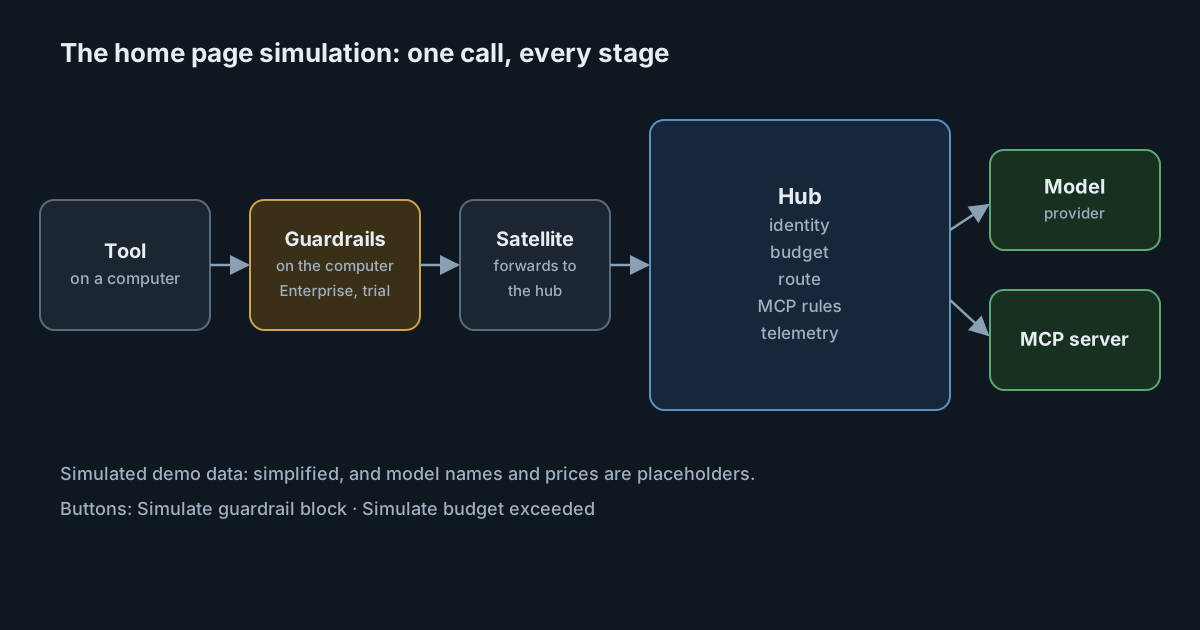
Below the install block, a panel labelled Simulated demo data draws calls from AI tools on three computers. Each call passes the computer's guardrails, then a satellite, then the hub's stages (identity, budget, route, MCP rules and telemetry) and ends at a model provider or an MCP server. Counters and a list of the latest calls show what happened to each one: allowed, rerouted, blocked on the computer or blocked at the hub.
Two buttons let you trigger the cases people ask about:
- Simulate guardrail block stops a call on the computer before it leaves. In SpanDock, guardrails are matched on each computer, so prompt text doesn't leave it to be checked. Guardrails on computers are on the Enterprise plan and in the 30-day trial; redaction of prompts and tool contents at the source is on every plan.
- Simulate budget exceeded pushes one person over their budget. Under budgets (Standard and above), a person near the limit (80% of it), or spending ahead of pace, only gets models cheaper than the one requested; over the limit, the administrator chooses whether calls are blocked, sent to the cheapest model or flagged.
The simulation also shows calls to destructive MCP tools, such as deleting a branch, stopped at the hub. In the MCP gateway (Premium and Enterprise, and in the trial), destructive tools don't run without an administrator's approval, and read-only access hides them completely. Every call, allowed or not, is recorded.
The panel says what it leaves out. Its footer notes that it is simplified (every model call is drawn through the hub, while only API-key traffic goes through the model proxy) and that model names and prices are placeholders. None of its counts, spend or savings figures describe a real deployment.
Secure by default, air-gapped when you need it
The third section collects the facts that security reviews ask for, each with a link to the docs page it comes from:
- No inbound port. Clients reach their server over an encrypted WireGuard tunnel, so a cloud VM needs no inbound port and no public address.
- Keeps working offline. A client queues uploads on disk while its server is unreachable and sends them when the connection returns.
- Signed licenses. License keys are signed with Ed25519, so a server verifies its license offline.
- Air-gapped on Enterprise. An Enterprise offline license is loaded with
-license-file FILEwhen the server starts, orspandock license import FILEon a running one. Nothing is sent for licensing. - What a license check sends. With an online license, the hub checks once a day, when the license changes and after every update. A check sends a random installation ID, the role, version, operating system and architecture, the reason for the check, and counts of active clients, servers and satellites. It never sends telemetry, prompts, code, tool output, or the names of your machines or people. If the site can't be reached, an online license has a 14-day grace period.
The Trust page has the longer version, including a table of standard, network-isolated and air-gapped deployments, and Licensing shows an example of a license check.