
Rolling SpanDock out to every computer in a company
Pre-register people, make an install code or pairing codes, enrol computers with nobody at the keyboard, and check the fleet, with what is still manual.
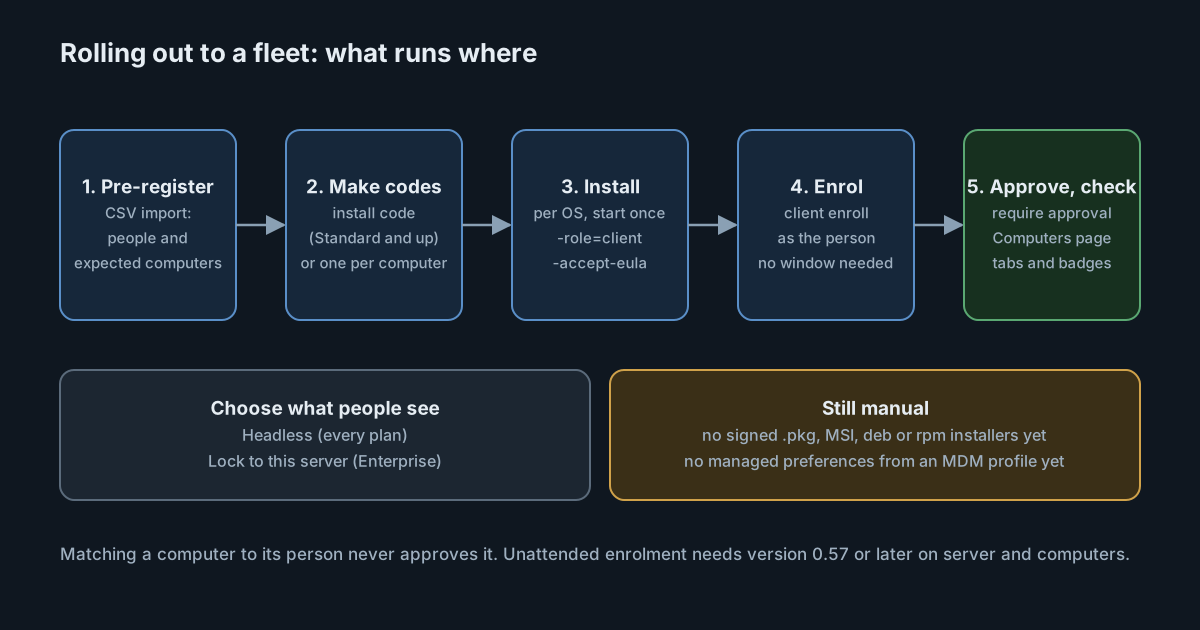
This guide plans a rollout of SpanDock Client to many company computers: who to register first, which code to hand out, the commands your device management tool (MDM) or script runs on each computer, and how to check the result. It follows Install on a fleet. Unattended enrolment, the lock to the server and the machine-wide protection described below need version 0.57 or later on both the server and the computers.
Prerequisites
- A running SpanDock server, signed in to https://spandock.com. See Getting started.
- A plan that covers the number of computers. The Personal plan covers 3 clients; Standard, Premium and Enterprise have no client limit. The server checks the limit when you make pairing codes, and its own machine doesn't count.
- A way to run a command on each computer as the person who uses it: your MDM, a script, or the person. SpanDock keeps its settings and login items in that person's account, so don't run it as the system or administrator account.
- Administrator access to the hub's own dashboard. Making install codes needs an administrator on the hub's own dashboard, and making pairing codes isn't possible through remote management.
Steps
1. Pre-register people and computers
Open People & computers → People and choose Import… to upload a CSV, or add people one at a time with Add person and Expect a computer.
- The file has a header row, and
emailorexternal_idis required. Other columns, such asteam,tags,computer_name,serialandhostname, are optional. - A file has at most 10,000 rows and 5 MB. Several tags or groups in one cell are separated by
;. - A preview shows what each row will do, and why a row is skipped. Rows match existing people by email, else by external ID, so importing the same file twice changes nothing.
- A row with computer columns adds an expected computer. When a computer pairs, it is matched to that person and named. Matching never approves a computer.
The same import runs on the server's command line, with a preview first:
spandock admin people import people.csv          # preview; nothing changes
spandock admin people import people.csv -apply   # import it
2. Choose the code you hand out
There are two ways to let computers join.
One install code for the whole fleet (Standard and up). Make it under People & computers → People → Install codes, or with spandock admin install-codes create. One code can go into one MDM package.
- It works until it expires (1 to 90 days, 30 by default), reaches an optional limit on uses, or you revoke it. It is shown once, and only its hash is kept on the server.
- It can make the computers it enrols Headless, and on Enterprise Locked to this server (step 5).
- Each computer is matched to its person by its own pairing code, then its serial number, then the person's email, then its hostname, then its OS user.
Or one pairing code per computer. In People & computers → People, choose Make N pairing codes, or run spandock admin expected codes -all -out codes.csv. You get a CSV with the columns email, computer_name, pairing_code and expires_at, up to 1,000 codes at a time.
- Each code works once, and stops working after 7 days unused by default. Change that under Settings → Clients → Pairing codes work for (1 to 90 days).
- Treat the file like a list of passwords: a pairing code contains the server's tunnel address and its encryption key. Delete the file once the codes are used.
Neither code approves a computer on its own. Approval is step 6.
3. Install the app and start it once
Install with the method for each operating system, then start SpanDock once in client mode. The flags are the same everywhere: -role=client chooses client mode, -accept-eula accepts the End User License Agreement, -open=false keeps the dashboard closed, and -menubar=false shows no menu bar or tray icon for this run. -role is needed only on the first start.
macOS, with Homebrew:
brew install --cask spandock/spandock/spandock
/Applications/SpanDock.app/Contents/MacOS/SpanDock -role=client -accept-eula -open=false -menubar=false
Without Homebrew, copy the app from the DMG to /Applications and clear the quarantine flag once with xattr -dr com.apple.quarantine /Applications/SpanDock.app. That step is needed because SpanDock isn't signed with an Apple Developer ID yet; the Homebrew cask clears the flag itself.
Windows: unzip spandock-windows-amd64.zip and run:
.\spandock.exe -role=client -accept-eula -open=false -menubar=falseLinux, with Homebrew:
brew install spandock/spandock/spandock
spandock -role=client -accept-eula -open=false -menubar=false
Or from the tarball (spandock-linux-arm64.tar.gz on ARM):
curl -fLO https://github.com/SpanDock/spandock-releases/releases/latest/download/spandock-linux-amd64.tar.gz
tar -xzf spandock-linux-amd64.tar.gz
./spandock -role=client -accept-eula -open=false -menubar=false
Keep the binary in a folder its user can write to, such as ~/.local/bin, so it can update itself.
There are no .pkg, MSI or deb installers yet.
4. Enrol each computer
Enrol each computer with no window, as the person who uses it:
spandock client enroll -code-file /path/to/code.txt -email maya@example.com -accept-eula- The code can also come from standard input (
-code-file -) or the environment variableSPANDOCK_PAIRING_CODE. There is deliberately no flag for it, so it stays out of the process list. -emailmatches the computer to its person, and the serial number is sent too.-headlessmakes it start headless.- If the server can't be reached, SpanDock starts anyway and retries in the background, backing off up to 15 minutes. A code the server refuses (expired, revoked, used up, or a plan without install codes) isn't tried again.
To pair by hand instead, open http://127.0.0.1:8787 on the computer, go to Settings → Server connection, paste the code and save.
5. Choose what people see
Open Computers → Client defaults to set values for every client, or select computers and choose Edit settings. A computer applies them within a minute of its first sync.
- Headless (under Advanced, every plan): no menu bar or tray icon, so no Quit item; the dashboard never opens by itself; the local dashboard shows only a "Managed by your organization" page; and local changes are refused. Telemetry, guardrails and the MCP and model proxies keep working, and the person can still make their own choices, such as acknowledging the privacy notice.
- Or keep the window and set The person's view: the menu bar icon, Open at login (off by default, so turn it on for a fleet), and which notices that aren't required are shown.
- Lock to this server (Enterprise): the person can't change the mode, reset SpanDock, or pair it with another code, and the menu bar has no Quit item. Someone who can delete the app's files still can, and the server then tells its admins.
6. Require approval for new clients
Turn on Settings → Clients → Require approval for new clients. A new computer then waits on the Computers page, holding its telemetry on the computer, until you approve it there (one at a time or Approve all) or with spandock admin approve CLIENT-ID.
7. Protect the login items (optional, every plan)
By default SpanDock and its watchdog start from login items in the person's account, which the person can remove. An administrator can add machine-wide login items instead, which a person without administrator rights can't remove or turn off. Run this once per computer, as root or from an administrator prompt, for example from the MDM script after installing:
sudo /Applications/SpanDock.app/Contents/MacOS/SpanDock system install   # macOS
sudo /usr/local/bin/spandock system install                                         # Linux
On Windows, run spandock.exe system install from PowerShell opened with Run as administrator.
The app must then sit in a folder only administrators can change, and it can't update itself without an administrator: update it with your MDM and run system install again after each update. A local administrator can always remove software.
Verify
Open the Computers page. Its tabs are Online, Needs approval, Offline, Out of sync (settings not applied yet), Low memory or disk and Revoked.
- Each expected computer that hasn't paired shows when its code expires.
- Headless computers carry a Headless badge, and protected ones show Protected.
- On a computer you protected in step 7, run
spandock system status. It needs no administrator, so your MDM can run it as a check.
Troubleshooting
- A computer's code expired. Make a new code for it, as in step 2.
- A computer says the server needs updating. An older server doesn't take install codes. Update the server first.
- SpanDock stopped on a computer. The sidekick, a small watchdog installed on first start, restarts it when it stops or stops answering, at most 3 times an hour, then says so under the bell. A clean quit, from the menu bar, a stop signal, an update or a restart, is left alone, unless the computer is locked to its server.
- A later start refuses to run. A start with a
-rolethat disagrees with the saved mode is refused. Drop the flag after the first start.
What is still manual
Signed installers (.pkg, MSI, deb and rpm) and managed preferences, which would let the install code and options come from an MDM profile, are planned but not available. Until then, the install and the enrol command run from your own script.
Next steps
- Pairing clients for re-pairing, revoking and managing clients one at a time.
- Install on a fleet for every option and command mentioned here.