
See where your data goes, before you change a setting
Use Dashboard → Data flow to check who can do what in SpanDock, from where, which checks apply, and what is stored or leaves your organisation.
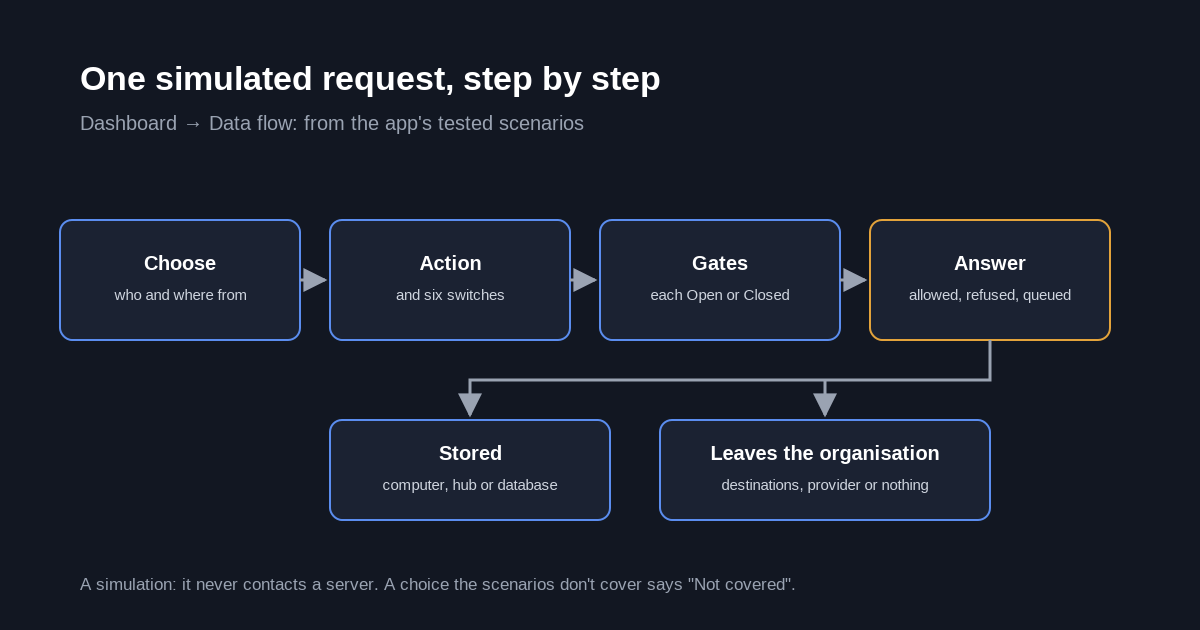
Before you change a setting on a SpanDock hub, it helps to know what the change would do: who could then do what, from where, and where the data would go. Dashboard → Data flow on your spandock.com account answers those questions without touching your hub. You pick a person or a program, where they connect from, an action and a few setup switches, and it shows each check on the way, the answer and what is stored or sent. This guide walks through it with two examples.
What you'll set up and why
The data-flow page is a simulator. It is built from the scenarios that the app's own tests check, so each answer it gives is one the app is tested to give, at the version the page names. It is useful when you are:
- reviewing a proposed change, such as requiring approval for new computers;
- answering a security questionnaire about who can change settings or what leaves the organisation;
- explaining to a colleague why a request was refused.
It never contacts a server and never asks for an address or a token. It runs in your browser from the scenarios file. If you choose a combination the scenarios don't cover, it says Not covered rather than guessing.
Prerequisites
- A signed-in spandock.com account. The page is on the account dashboard for every signed-in customer; it doesn't need a hub to be running.
- A rough idea of your hub's setup, so you can set the switches to match it. See Pairing clients for computer approval and Identity and audit for dashboard roles.
Steps
1. Open the page
Sign in to your spandock.com account and open Dashboard → Data flow. The panel at the top says it is a simulation and names the app version it is based on (v0.62.0 at the time of writing). The answers describe that version.
2. Start from an example, or make your own choice
The Example list holds every scenario in the file, by name, such as "A viewer changes a setting" or "A new computer sends telemetry before it is approved". Picking one fills in the rest of the form. Your own choice leaves the form for you to fill in.
3. Choose who, where from and the action
- Who: for example an administrator, an editor, a viewer, an auditor, a person on their own computer, a paired computer, an app with a service key, or someone without an account.
- Where from: for example the hub's own dashboard, remote management, a paired computer over the tunnel, the hub's public URL, or another machine on the network.
- Action: for example send telemetry, change a setting, delete records, call a model or open remote management.
4. Set the setup switches
Six switches describe the hub's setup. Their defaults are shown in brackets:
- Dashboard sign-in (on)
- Prompt capture for this computer (off)
- A satellite in the path (off)
- License activated (on)
- IP allowlist (off)
- New computers need approval (off)
A scenario lists only the switches that change its answer. Switches it doesn't list don't matter for that scenario.
5. Read the answer
For a covered choice, the page shows:
- The answer: allowed, refused or queued, with the HTTP status the hub returns, for example "Refused, HTTP 403".
- Gates on the path: each check in order, marked Open or Closed, with the reason in words.
- Stored: what is kept, and where (the computer, the hub, or the hub's database), or "Nothing is stored."
- Leaves the organisation: what goes out, and to where (for example the destinations you chose or the model provider), or "Nothing leaves the organisation."
- The diagram: the data-flow diagram below the answer highlights the path the request takes.
Verify it works: two examples
A viewer tries to change a setting
Set Who to Viewer, Where from to The hub's own dashboard and Action to Change a setting, with Dashboard sign-in on. The answer is Refused, HTTP 403. One gate is on the path, the dashboard role, and it is closed: viewers have read-only access, and changing settings needs an editor. Nothing is stored and nothing leaves the organisation.
Try the same with Auditor. It is refused with 403 too: auditors read the pages on their list and change nothing.
A new computer waits for approval
Set Who to A paired computer, Where from to A paired computer, over the tunnel and Action to Send telemetry. Turn New computers need approval on.
The answer is Queued, HTTP 403. Two gates are on the path:
- The computer's own token is open: the token is valid.
- An administrator's approval of the computer is closed. Until it is approved, the hub answers 403 to everything except the computer's report.
Under Stored, the telemetry stays in the computer's queue on disk until it is approved. Nothing leaves the organisation.
Now turn New computers need approval off. The answer becomes Allowed, HTTP 200: the computer proves who it is with its own token, and the hub takes its identity from that token, never from the request. The records are stored in the hub's database with prompt text taken out first, and the original records, with prompt text removed, go to every destination that is on.
Comparing the two answers shows what the approval switch changes: whether telemetry waits on the computer or reaches the hub.
Troubleshooting
- "Not covered". No scenario matches your choice exactly, or more than one does and the file doesn't say which applies. Nothing is guessed. Change one field at a time, or start again from an Example.
- The answer doesn't match your hub. Check the switches first: the defaults may not be your setup. Then check the version in the top panel. The page describes that version, and a newer hub may behave differently where its scenarios have changed.
- You want to test the real thing. The page is a simulation and never reaches your hub. To see what actually happened, use your hub's own dashboard.
What it doesn't do
The simulator only knows the scenarios in its file. It doesn't infer rules for combinations it hasn't been given, and it doesn't read your hub's configuration. Isolation between parts of the system is shown as layered checks, logical and cryptographic, as the gates describe; the page doesn't claim more than that.
Next steps
- Pairing clients: require approval for new computers, and approve them.
- Identity and audit: what each dashboard role can do.
- Privacy and security: what is collected and where it goes.