
Copilot browser use is in preview: an agent in your signed-in browser
Copilot can now drive Chrome through an extension, in sites you're signed in to. What the preview does, the managed setting for it, and what to decide.
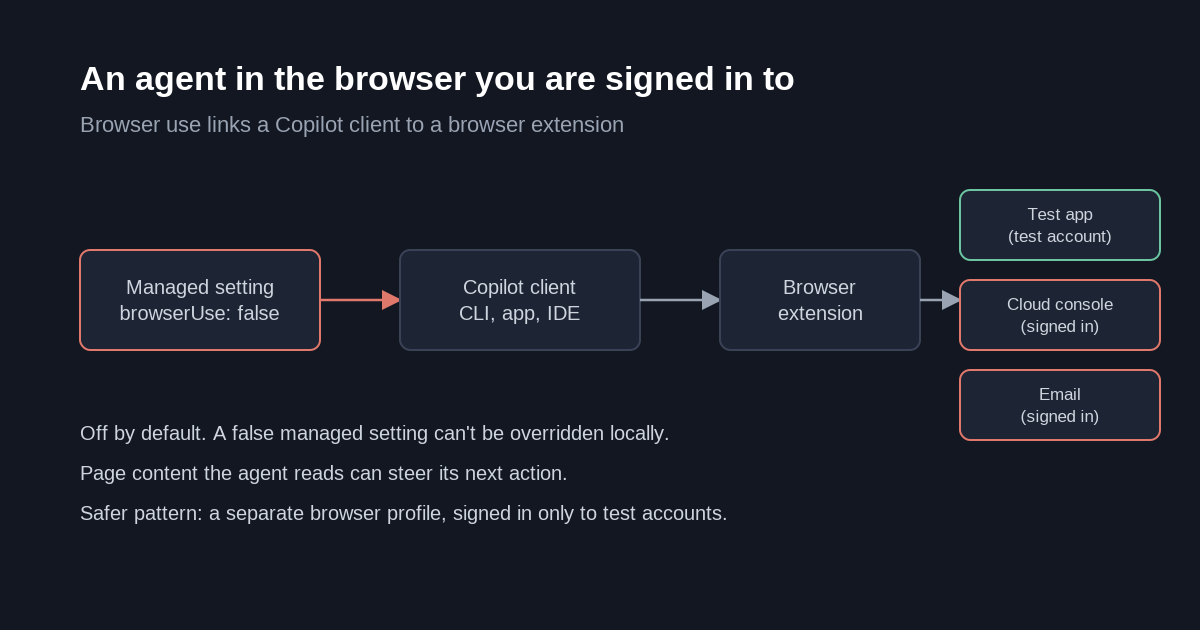
GitHub Copilot can now operate your web browser. On 17 November 2026 GitHub put browser use into public preview in Copilot CLI, the Copilot app, VS Code and JetBrains IDEs. Paired with a Copilot browser extension, the agent can open pages, click, type and read what is on screen. The useful part for testing web apps is also the part that needs a policy decision: it works in the browser you already use, where you are already signed in.
What browser use does
GitHub's overview of browser use lists three kinds of task: testing a web application, filling in a form, and navigating to a page to retrieve information. Its own example goes further: test a website, record the results in an online spreadsheet, and draft an email summary for stakeholders, with the advice to "ask Copilot to show you the email before sending it".
It is separate from computer use, which drives desktop applications and was covered in an earlier article. The changelog says the two can be used together.
How it is switched on
Browser use is off by default. A developer needs to:
- install the GitHub Copilot extension from the Chrome Web Store;
- turn browser use on in their Copilot client: in the CLI, enable the
browser-useplugin through/pluginand start a new session (the CLI guide also requires Node.js 22 or later); in the Copilot app, under computer use settings, which must themselves be on; in VS Code and JetBrains, in settings; - check that the extension shows Connected.
Permission levels and experimental features are managed in the extension's own settings.
The sources differ slightly on browsers. The changelog names Chrome. The overview lists Chrome and Microsoft Edge, adding that Chrome must also be installed for Edge. The CLI guide says to install the extension "in Chrome or Microsoft Edge". If you plan to allow it only in one managed browser, test that combination first.
The control administrators have
There is one enterprise switch. The managed settings reference describes features.browserUse: set it to false and users cannot turn browser use on, and "a local setting cannot override this restriction". Set it to true, or leave it out, and each user decides. The reference marks the key as supported in Copilot CLI, VS Code, the Copilot app, JetBrains IDEs and Copilot in the cloud, and lists no minimum versions for it.
The Copilot CLI changelog entry for version 1.0.113, on 17 November, adds that administrators can disable built-in browser use with this setting "including in running sessions". That matters: turning it off takes effect without waiting for developers to restart.
Note what the setting doesn't do. It is on or off for everyone it applies to. There is no documented allow list of sites, and the permission levels live in the extension, set by each user.
Analysis: the risk is the session, not the clicking
Most agent permissions are about commands and files. Browser use adds a different asset: the developer's live web sessions. GitHub's overview is direct about it. Browser use "can interact with websites where you are already signed in", and "ambiguous instructions or unexpected webpage content can cause unintended actions that affect your data or connected accounts".
That second sentence is prompt injection in plain words. A page the agent reads, including a test environment that renders user content, an issue or a support ticket, can contain text that steers the agent. With browser use, the agent's next step may happen in a tab signed in to the company's cloud console, email or HR system. The overview also warns that pages "may display sensitive information, including information about other people", which then becomes context sent to the model.
Two further points follow from the design:
- The browser is shared. Unless a developer uses a separate profile, the agent works in the same browser, with the same cookies, as their daily work. None of the documentation pages we read describes a separate browser profile by default.
- Review happens after the fact. The guidance asks users to review the agent's activity and results, particularly before changes to data or actions that affect others. That relies on people reading carefully, which is the control most likely to fade as the feature becomes routine.
For testing web applications, the feature is useful, and the safe version is easy to describe: a dedicated browser profile signed in only to test accounts, on a test environment.
What it means for engineering and security leaders
Decide before the preview spreads, not after. The realistic choices are to block it with features.browserUse: false while you assess it, or to allow it with a written rule about which browser profile and which sites it may be used with. Because the managed setting is all or nothing, any finer rule has to be a working practice, not a technical control.
If you already manage computer use, align the two decisions: the Copilot app ties browser use to computer use being on, and a team that has blocked desktop control may not expect browser control to be available separately in other clients. The earlier piece on Copilot managed settings that fail closed covers how to make sure these settings actually reach every client.
Practical takeaways
- Decide on
features.browserUsenow:falsewhile you assess, or an explicittruewith a usage rule. - Require a separate browser profile for agent use, signed in only to test or low-risk accounts.
- Keep it off production consoles, email and anything that holds personal data, and say so in your AI usage policy.
- Update Copilot CLI to 1.0.113 or later so that disabling it applies to running sessions.
- Treat pages as untrusted input in testing: content the agent reads can steer what it does next.